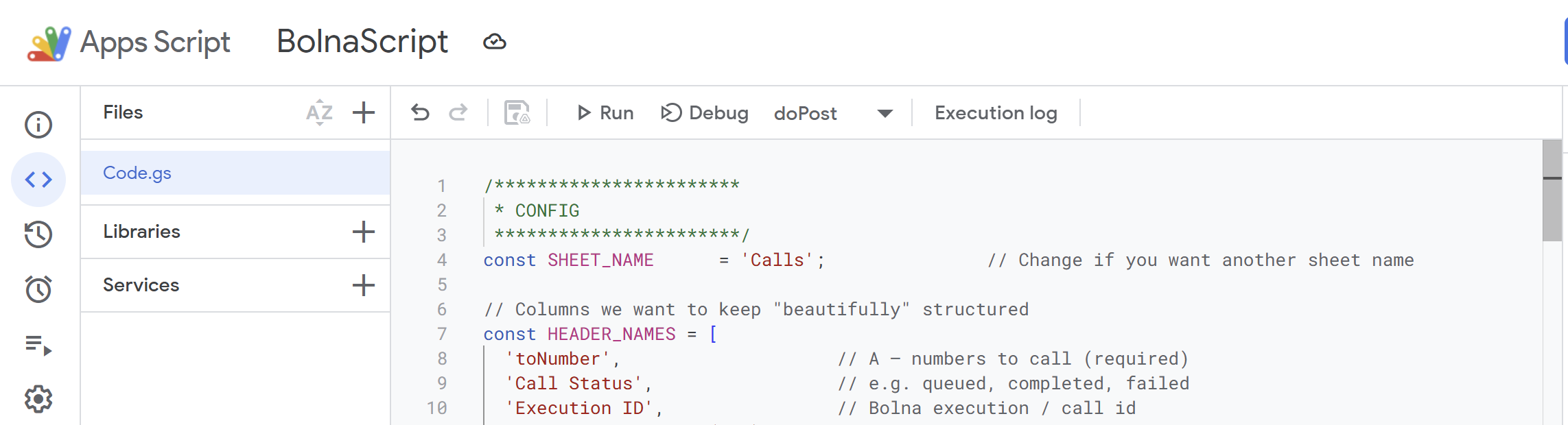
/***********************
 * CONFIG
 ***********************/
const SHEET_NAME      = 'Calls';               // Change if you want another sheet name

// Columns we want to keep structured
const HEADER_NAMES = [
  'toNumber',                    // A – numbers to call (required)
  'Call Status',                 // e.g. queued, completed, failed
  'Execution ID',                // Bolna execution / call id
  'Conversation Time (sec)',     // conversation_time
  'Duration (sec)',              // telephony_data.duration
  'Total Cost',                  // total_cost
  'Answered by Voicemail',       // answered_by_voice_mail
  'Recording URL',               // telephony_data.recording_url
  'Hangup By',                   // telephony_data.hangup_by
  'Hangup Reason',               // telephony_data.hangup_reason
  'Transcript',                  // transcript (if provided)
  'Extracted Data (JSON)',       // extracted_data as JSON
  'Recipient Name',              // context_details.recipient_data.name
  'Recipient Email',             // context_details.recipient_data.email
  'Last Updated At'              // timestamp when we last wrote
];

/***********************
 * 1) WEBHOOK HANDLER
 *    (Bolna -> Sheet)
 ***********************/
function doPost(e) {
  const sheet = getOrCreateSheet_();
  const headersMap = ensureHeaders_(sheet);

  try {
    if (!e || !e.postData || !e.postData.contents) {
      return jsonResponse_({ ok: false, error: 'Empty request body' });
    }

    const rawBody = e.postData.contents;
    const payload = JSON.parse(rawBody);

    // Bolna sends an "execution payload" object when a phone call ends.
    // We try to be tolerant to slightly different shapes.
    const execution = extractExecutionFromWebhook_(payload);
    if (!execution) {
      return jsonResponse_({ ok: false, error: 'No execution object found in payload' });
    }

    const execId = execution.id || execution.execution_id || '';
    const telephony = execution.telephony_data || execution.transfer_call_data || {};
    const context = execution.context_details || {};
    const recipientData = context.recipient_data || {};

    const toNumber =
      telephony.to_number ||
      context.recipient_phone_number ||
      recipientData.phone ||
      '';
    const normalizedToNumber = normalizePhone_(toNumber);

    // Try to find the row: prefer Execution ID, fall back to toNumber
    let rowIndex = -1;
    if (execId && headersMap['Execution ID']) {
      rowIndex = findRowByValue_(sheet, headersMap['Execution ID'], execId);
    }
    if (rowIndex === -1 && normalizedToNumber && headersMap['toNumber']) {
      rowIndex = findRowByValue_(
        sheet,
        headersMap['toNumber'],
        normalizedToNumber,
        normalizePhone_
      );
    }

    // If nothing found, append a new row
    if (rowIndex === -1) {
      rowIndex = sheet.getLastRow() + 1;
      if (headersMap['toNumber'] && toNumber) {
        sheet.getRange(rowIndex, headersMap['toNumber']).setValue(toNumber);
      }
    }

    // Write all the pretty data into that row
    writeExecutionToRow_(
      sheet,
      headersMap,
      rowIndex,
      execution,
      telephony,
      context,
      recipientData,
      toNumber
    );

    return jsonResponse_({ ok: true });
  } catch (err) {
    Logger.log('Webhook error: ' + err + '\n' + (err.stack || ''));
    return jsonResponse_({ ok: false, error: String(err) });
  }
}

/***********************
 * Helpers
 ***********************/

function getOrCreateSheet_() {
  const ss = SpreadsheetApp.getActiveSpreadsheet();
  let sheet = ss.getSheetByName(SHEET_NAME);
  if (!sheet) {
    sheet = ss.insertSheet(SHEET_NAME);
  }
  return sheet;
}

/**
 * Ensures header row exists and contains all HEADER_NAMES.
 * Returns a map { headerName: columnIndex }.
 * Guarantees col 1 header is exactly "toNumber".
 */
function ensureHeaders_(sheet) {
  let lastRow = sheet.getLastRow();
  let lastCol = sheet.getLastColumn();

  // Completely empty sheet – write all headers in one go
  if (lastRow === 0 || lastCol === 0) {
    sheet.getRange(1, 1, 1, HEADER_NAMES.length).setValues([HEADER_NAMES]);
  } else {
    const row = sheet.getRange(1, 1, 1, lastCol).getValues()[0];
    const headerMap = {};

    for (let c = 0; c < row.length; c++) {
      const name = String(row[c] || '').trim();
      if (name) headerMap[name] = c + 1;
    }

    // Force first column header to be "toNumber"
    if (!row[0] || String(row[0]).trim() !== 'toNumber') {
      sheet.getRange(1, 1).setValue('toNumber');
      headerMap['toNumber'] = 1;
    }

    // Append missing headers to the right
    let col = lastCol + 1;
    HEADER_NAMES.forEach(function (name) {
      if (!headerMap[name]) {
        sheet.getRange(1, col).setValue(name);
        headerMap[name] = col;
        col++;
      }
    });

    return headerMap;
  }

  // After writing fresh headers, build map
  const headers = sheet
    .getRange(1, 1, 1, sheet.getLastColumn())
    .getValues()[0];

  const headerMap = {};
  for (let c = 0; c < headers.length; c++) {
    const name = String(headers[c] || '').trim();
    if (name) headerMap[name] = c + 1;
  }
  return headerMap;
}

/**
 * Find the first row (>=2) in column colIndex whose value matches the given value.
 * If normalizer is provided, compare normalized values (e.g., to align phone formats).
 * Returns row index or -1 if not found.
 */
function findRowByValue_(sheet, colIndex, value, normalizer) {
  const lastRow = sheet.getLastRow();
  if (lastRow < 2) return -1;

  const numRows = lastRow - 1;
  const values = sheet.getRange(2, colIndex, numRows, 1).getValues();
  const needle = normalizer
    ? normalizer(value || '')
    : String(value || '').trim();

  for (let i = 0; i < values.length; i++) {
    const cell = normalizer
      ? normalizer(values[i][0])
      : String(values[i][0] || '').trim();
    if (cell && cell === needle) {
      return i + 2; // actual sheet row
    }
  }
  return -1;
}

/**
 * Try to normalize different possible webhook payload shapes
 * into a single "execution" object.
 *
 * Bolna's execution objects typically contain fields like:
 *  id, agent_id, status, conversation_time, total_cost,
 *  telephony_data { duration, to_number, from_number, recording_url, hangup_by, hangup_reason, ... },
 *  extracted_data, context_details, etc. :contentReference[oaicite:3]{index=3}
 */
function extractExecutionFromWebhook_(payload) {
  if (!payload) return null;

  if (payload.execution) return payload.execution;

  if (Array.isArray(payload.data) && payload.data.length > 0) {
    return payload.data[0];
  }

  // Fall back to assuming payload itself IS the execution object
  return payload;
}

/**
 * Write execution data into a row, using the header map.
 */
function writeExecutionToRow_(sheet, headersMap, rowIndex,
                              execution, telephony, context,
                              recipientData, toNumber) {
  if (headersMap['toNumber'] && toNumber) {
    sheet.getRange(rowIndex, headersMap['toNumber']).setValue(toNumber);
  }

  if (headersMap['Call Status'] && execution.status) {
    sheet.getRange(rowIndex, headersMap['Call Status']).setValue(execution.status);
  }

  if (headersMap['Execution ID']) {
    const execId = execution.id || execution.execution_id || '';
    if (execId) {
      sheet.getRange(rowIndex, headersMap['Execution ID']).setValue(execId);
    }
  }

  if (headersMap['Conversation Time (sec)'] &&
      typeof execution.conversation_time !== 'undefined') {
    sheet.getRange(rowIndex, headersMap['Conversation Time (sec)'])
      .setValue(execution.conversation_time);
  }

  if (headersMap['Duration (sec)'] &&
      typeof telephony.duration !== 'undefined') {
    sheet.getRange(rowIndex, headersMap['Duration (sec)'])
      .setValue(telephony.duration);
  }

  if (headersMap['Total Cost'] &&
      typeof execution.total_cost !== 'undefined') {
    sheet.getRange(rowIndex, headersMap['Total Cost'])
      .setValue(execution.total_cost);
  }

  if (headersMap['Answered by Voicemail'] &&
      typeof execution.answered_by_voice_mail !== 'undefined') {
    sheet.getRange(rowIndex, headersMap['Answered by Voicemail'])
      .setValue(execution.answered_by_voice_mail);
  }

  if (headersMap['Recording URL'] && telephony.recording_url) {
    sheet.getRange(rowIndex, headersMap['Recording URL'])
      .setValue(telephony.recording_url);
  }

  if (headersMap['Hangup By'] && telephony.hangup_by) {
    sheet.getRange(rowIndex, headersMap['Hangup By'])
      .setValue(telephony.hangup_by);
  }

  if (headersMap['Hangup Reason'] && telephony.hangup_reason) {
    sheet.getRange(rowIndex, headersMap['Hangup Reason'])
      .setValue(telephony.hangup_reason);
  }

  if (headersMap['Transcript'] && execution.transcript) {
    sheet.getRange(rowIndex, headersMap['Transcript'])
      .setValue(execution.transcript);
  }

  if (headersMap['Extracted Data (JSON)'] && execution.extracted_data) {
    sheet.getRange(rowIndex, headersMap['Extracted Data (JSON)'])
      .setValue(JSON.stringify(execution.extracted_data));
  }

  if (headersMap['Recipient Name'] && recipientData.name) {
    sheet.getRange(rowIndex, headersMap['Recipient Name'])
      .setValue(recipientData.name);
  }

  if (headersMap['Recipient Email'] && recipientData.email) {
    sheet.getRange(rowIndex, headersMap['Recipient Email'])
      .setValue(recipientData.email);
  }

  if (headersMap['Last Updated At']) {
    sheet.getRange(rowIndex, headersMap['Last Updated At'])
      .setValue(new Date());
  }
}

/**
 * Simple JSON response helper for webhooks.
 */
function jsonResponse_(obj) {
  return ContentService
    .createTextOutput(JSON.stringify(obj))
    .setMimeType(ContentService.MimeType.JSON);
}


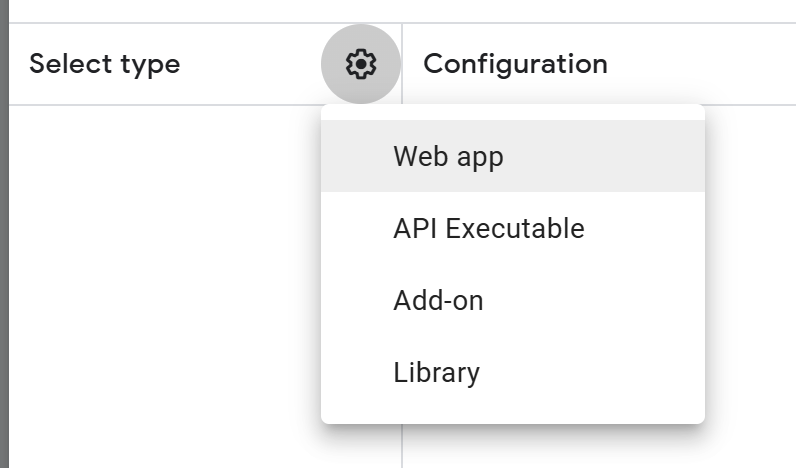
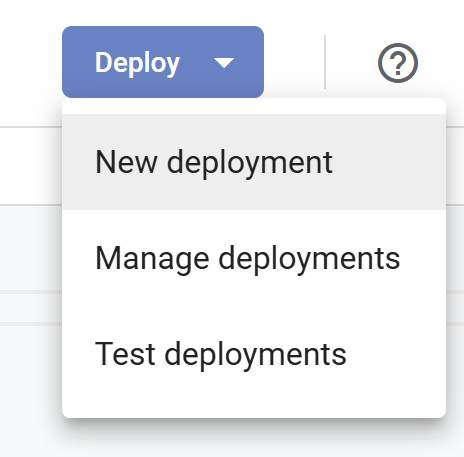 Select Web app as the deployment type.
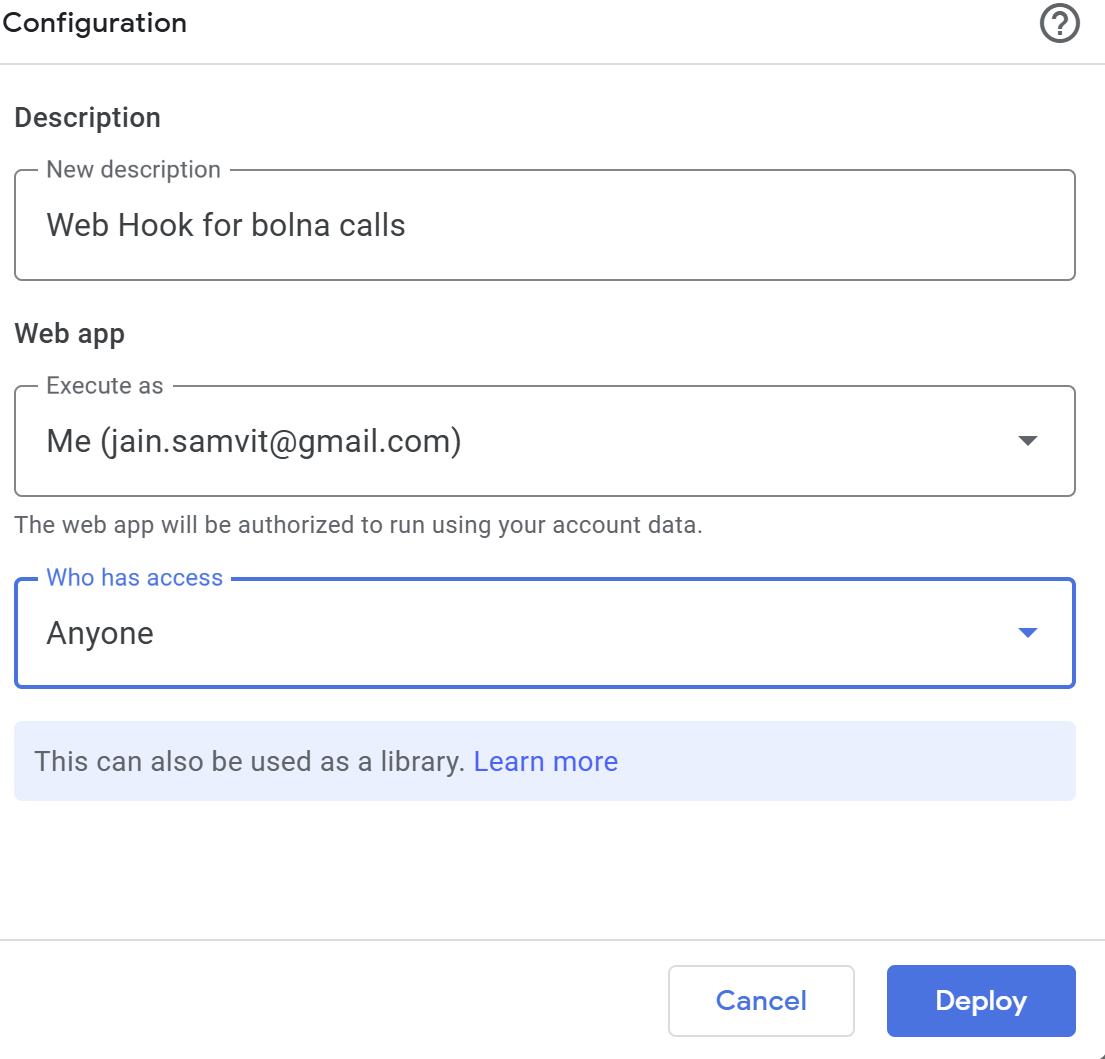
  Use description “Web hook for Bolna calls,” set Execute as to Me, and Who has access to Anyone so Bolna can reach it.
  Click Deploy, authorize when prompted, then copy the Web App URL for use in Bolna.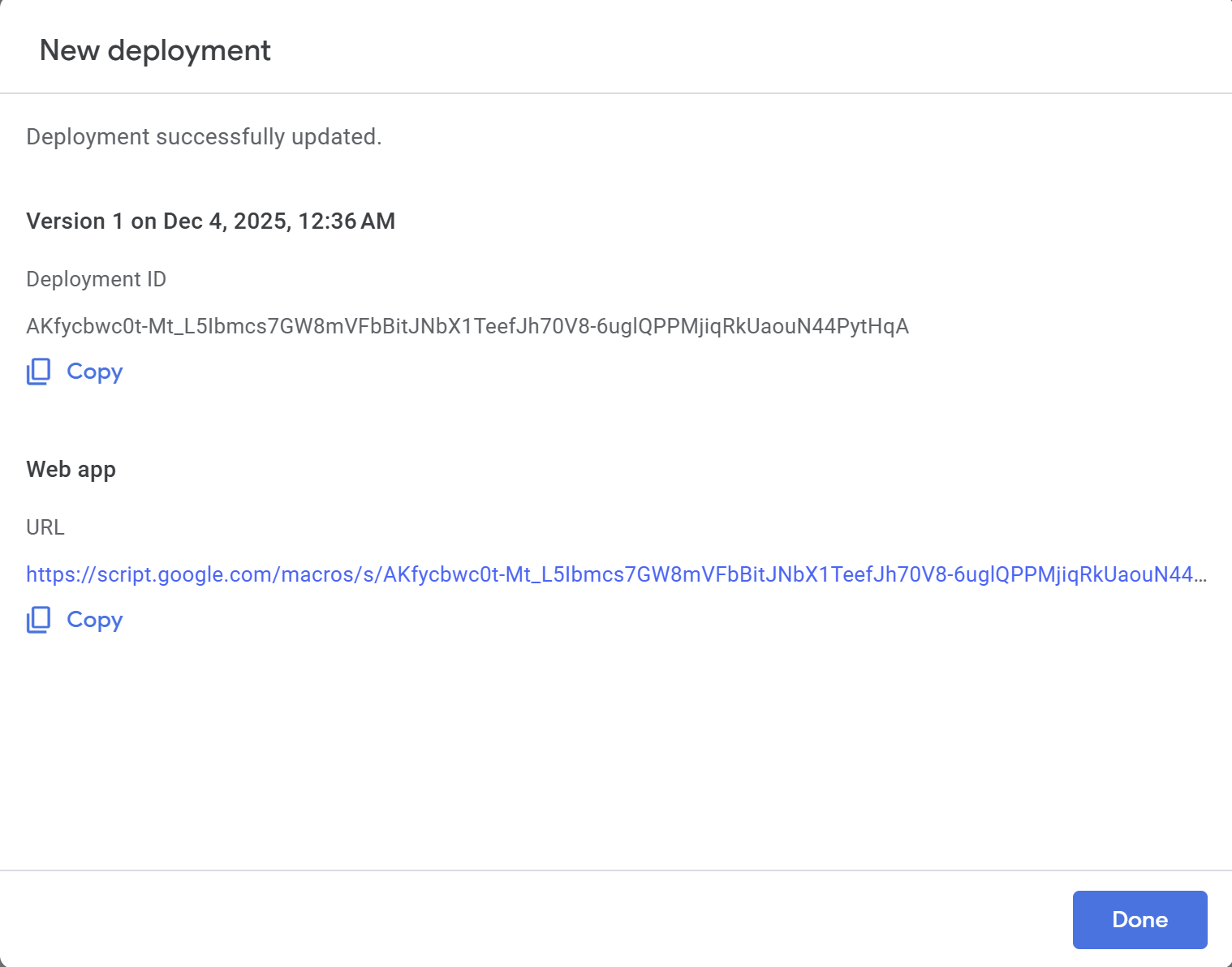
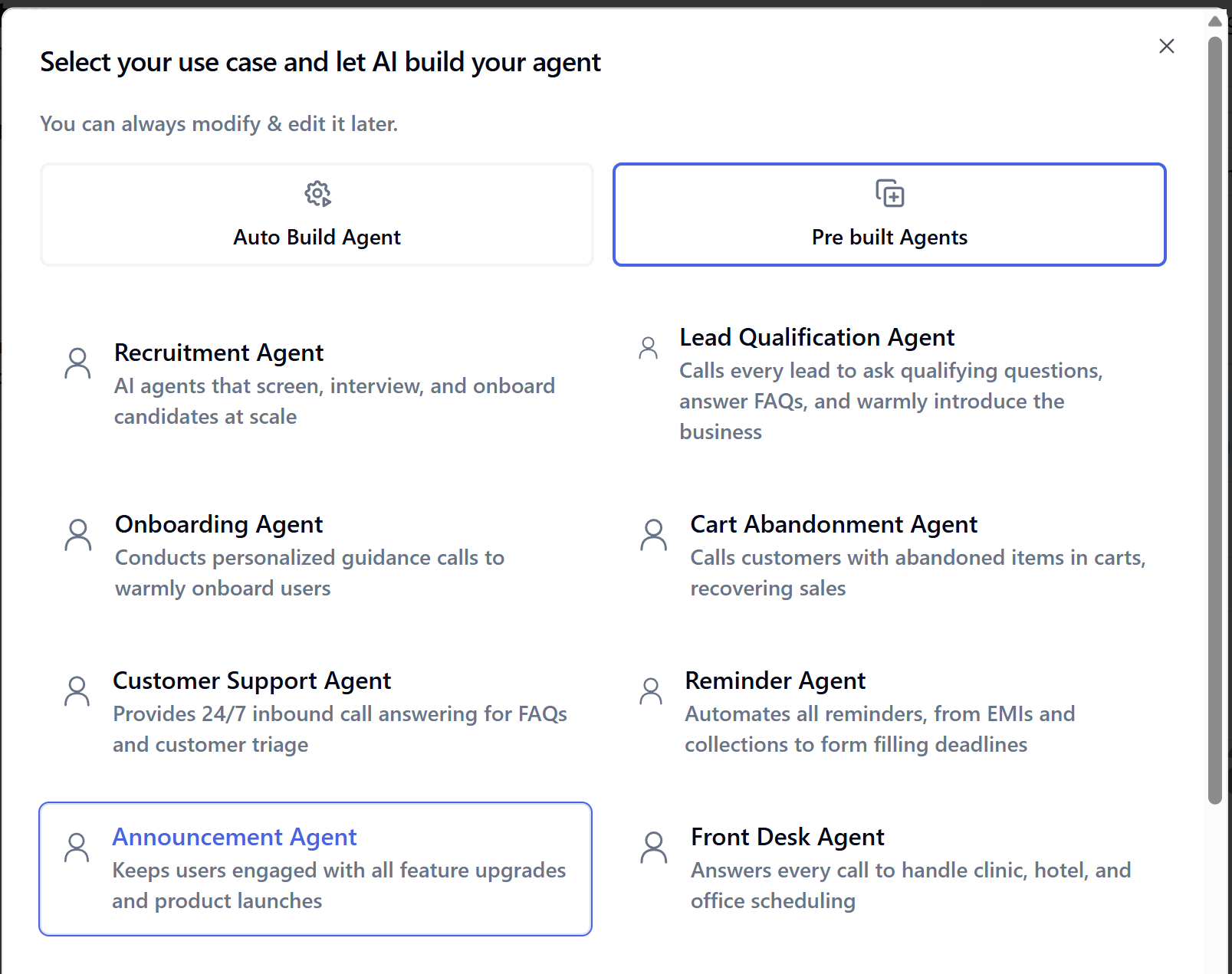
 Choose the prebuilt Announcement agent.
  Open the Analytics tab.
  Paste the Web App URL into Your webhook URL.
  Click Save agent.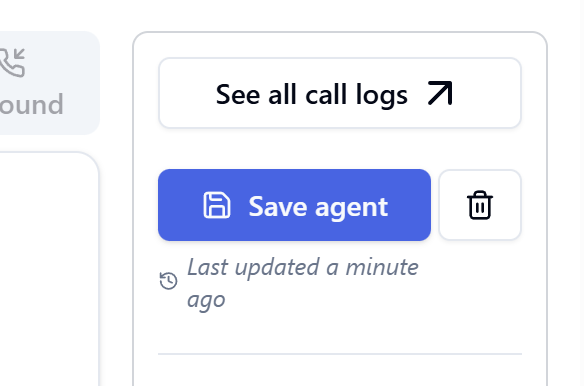
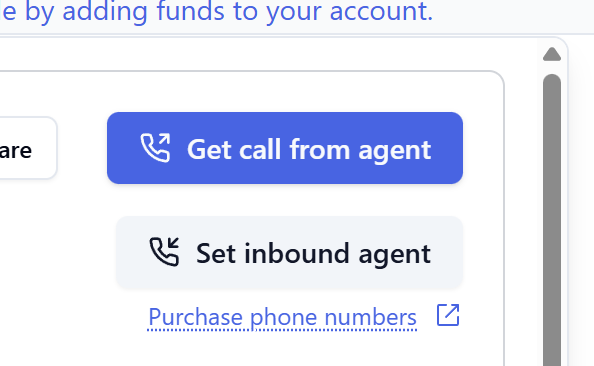 In the Place outbound calls dialog, enter your phone number and click Place call.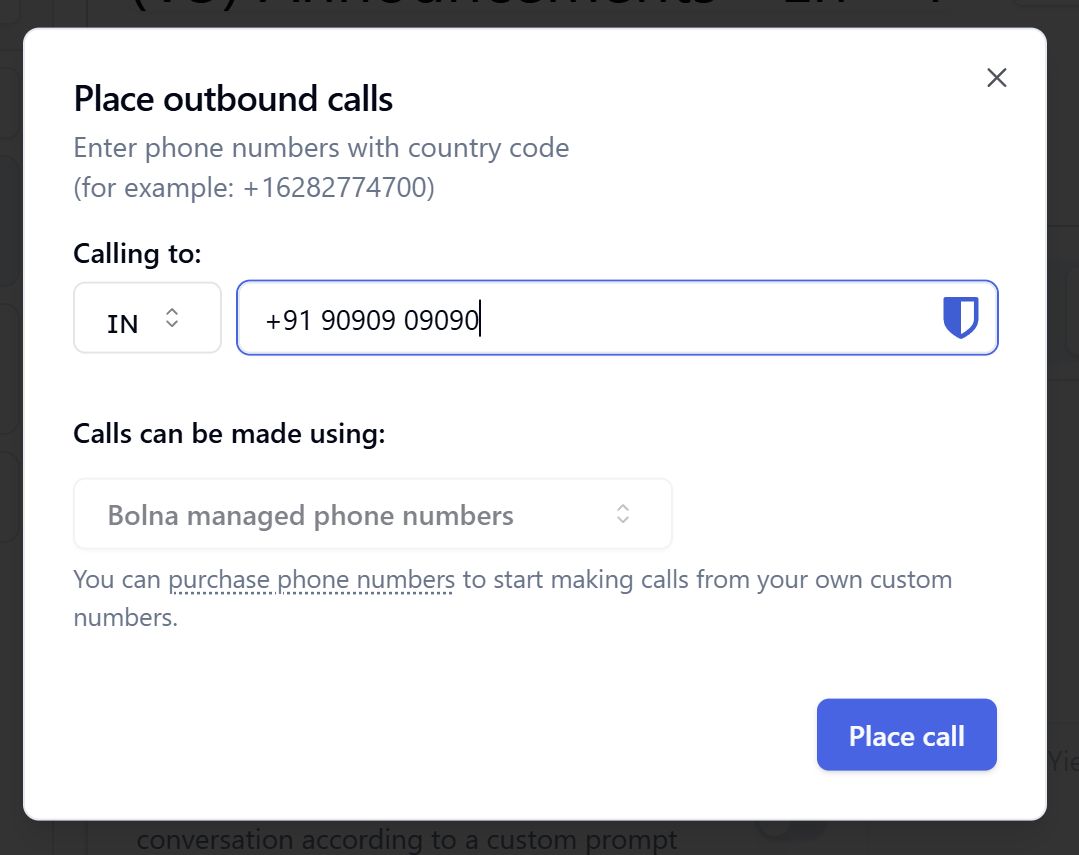
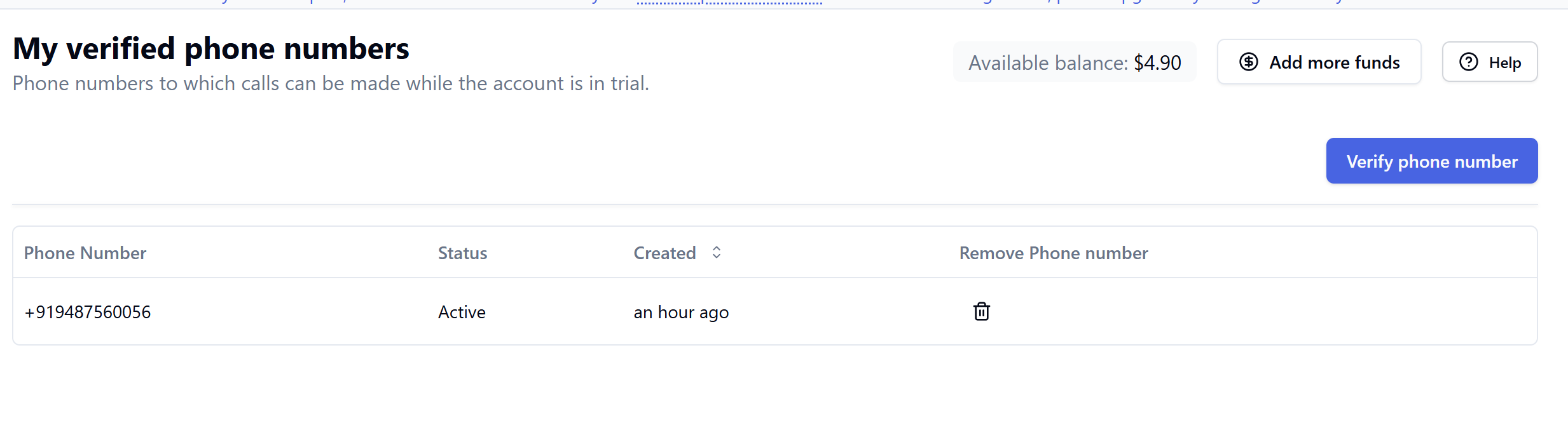
 After verification, place the call again; once the call completes, execution data will arrive automatically in your sheet.
 Go to the Developers tab.
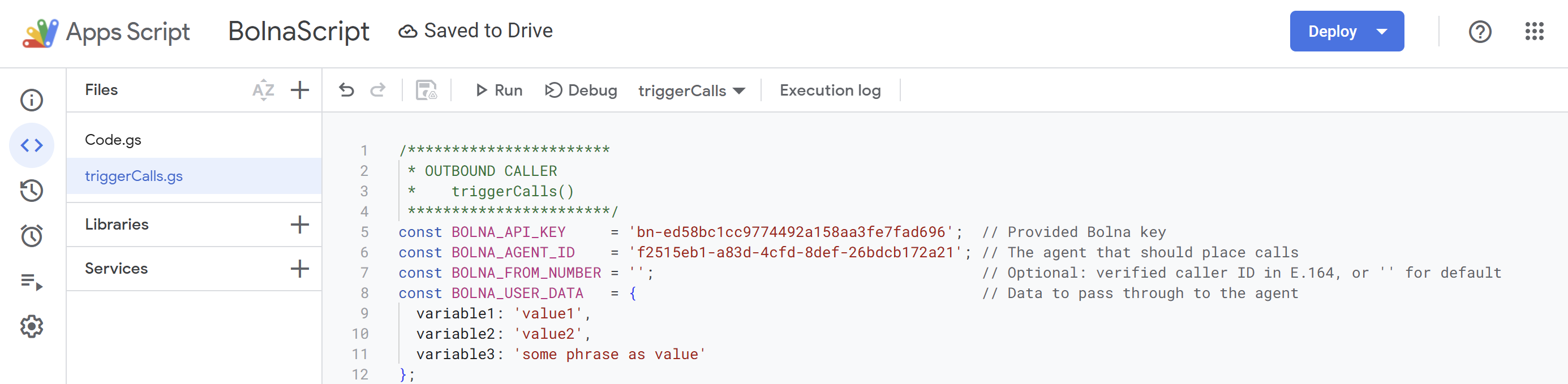
 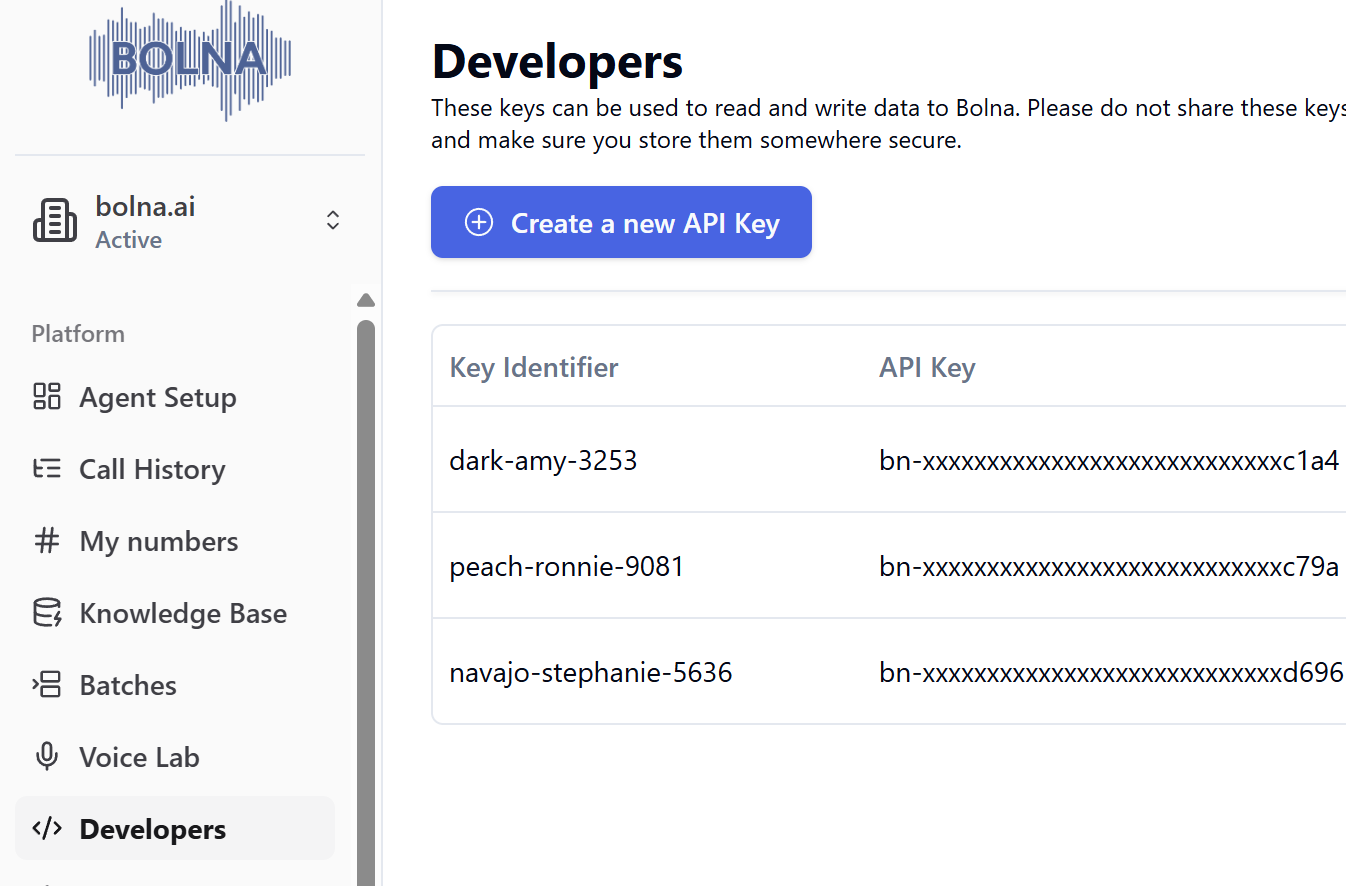 Create a new API key and copy it.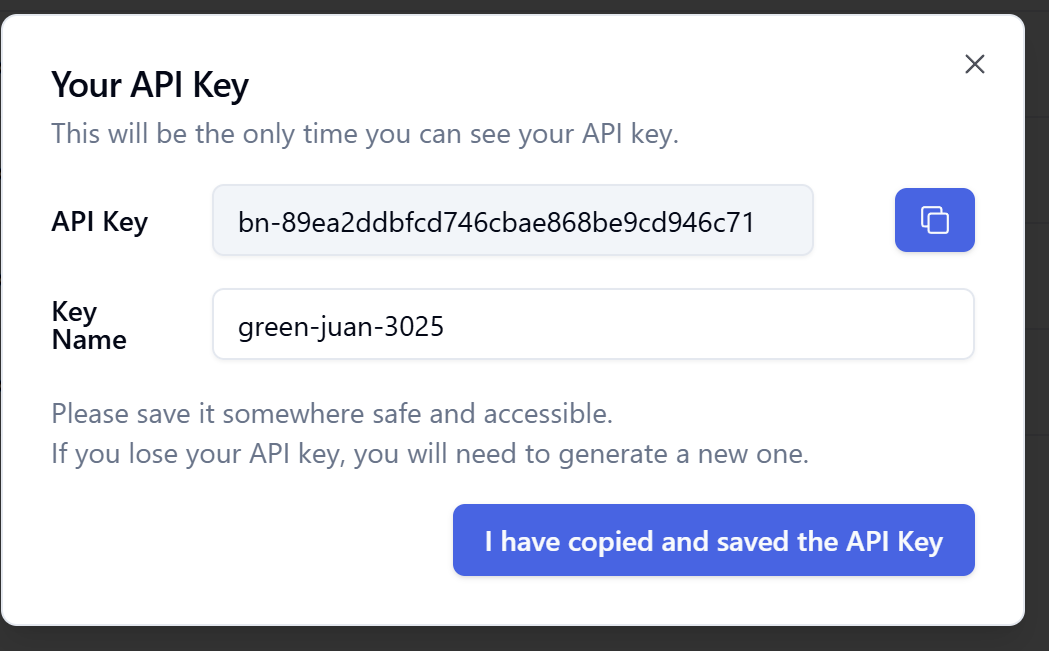
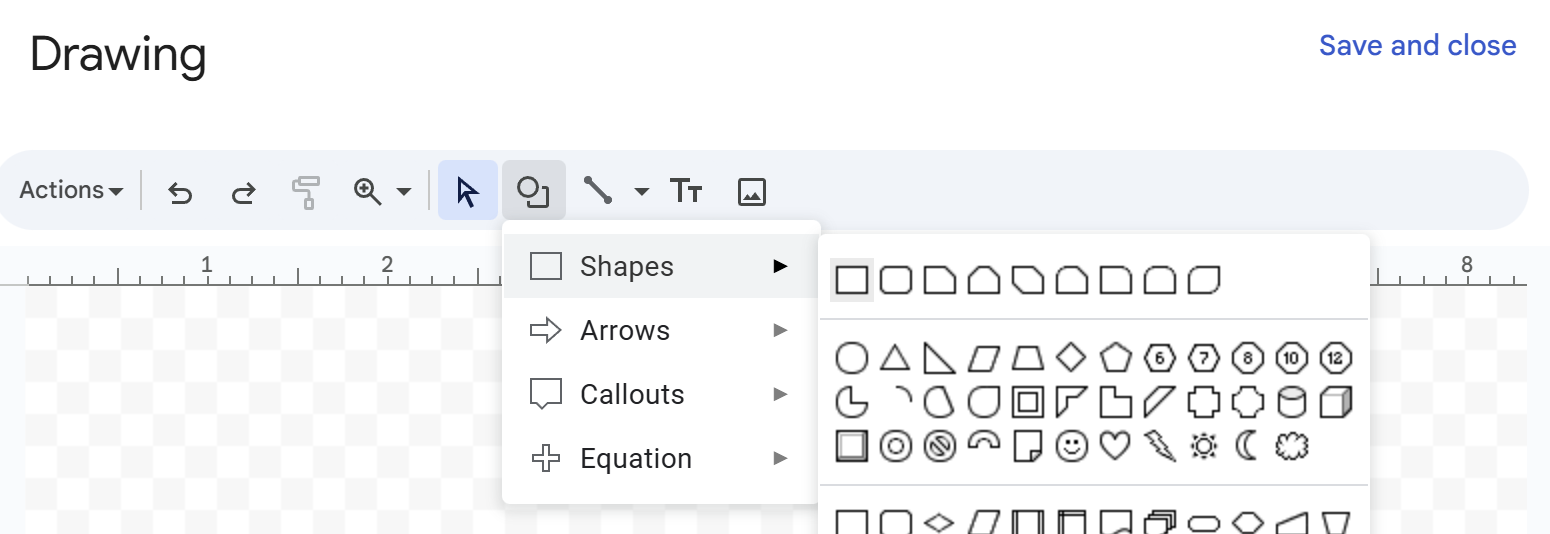
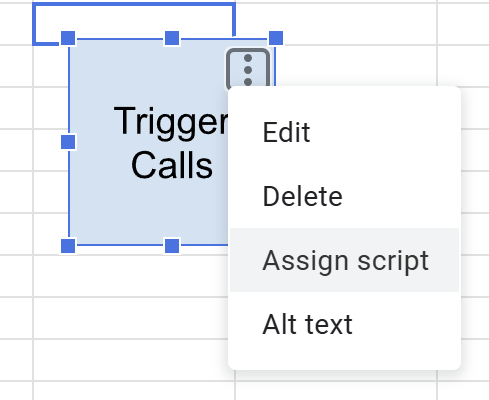
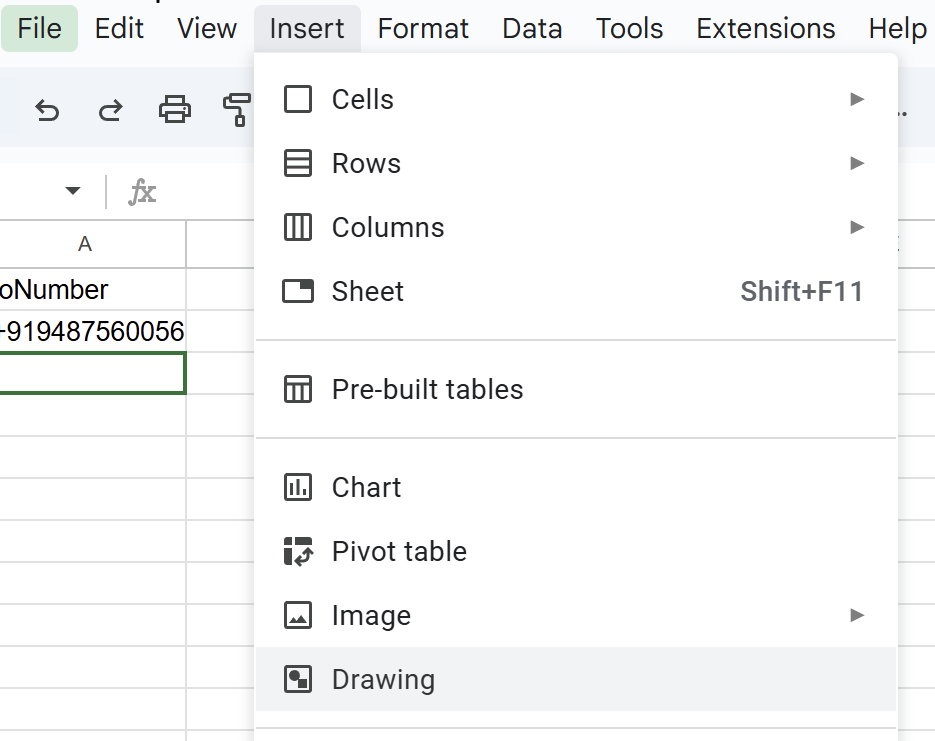 Draw a small rectangle to serve as a button.
  Click the drawing’s three-dots menu and choose Assign script.
  Enter
Enter 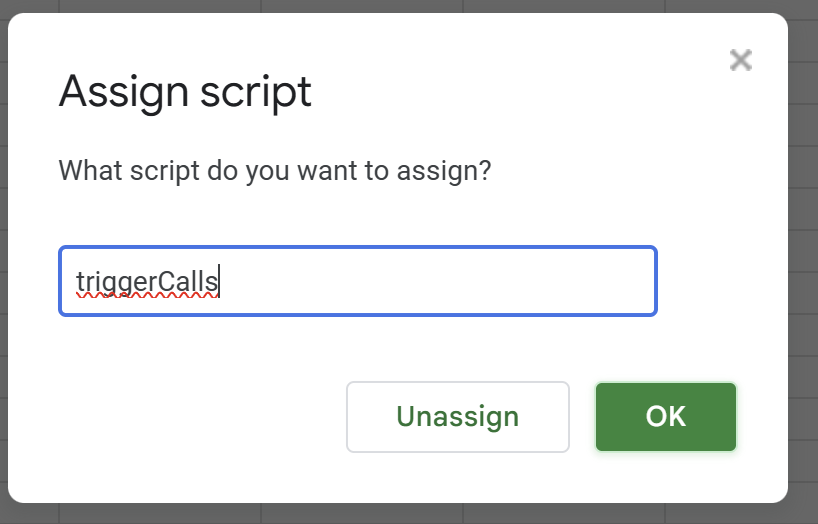 Clicking the button now runs